Many of the solutions to vertical menus with submenus involve javascript to trigger submenus, either through mouseover or by direct click. The click action seems to be the most popular since it does not involve any transitions or animations. Click and it appears.
There are also quite a few examples of vertical navigation with and without submenus.
One of the difficulties of any type of navigation is the user experience.
 I was reminded of that when looking through the <details></details> and <summary></summary> tags over the past few days. I know it is standard to have the drop down arrow on the left in the details panel, but that seems counter-intuitive ... we are so used to seeing "navigation" type elements on the right. Most are to the far right of the element, some are close to the text ... but they are to the right. The image at the right of this paragraph shows a "standard" details panel. That's the summary line showing to the right of the arrow.
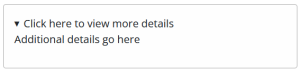 If you click that anywhere in the details panel ... meaning on the arrow, on the text, or even in the white space ... what displays is the text. The title "Click here to view more details" is coded as: <summary>Click here to view more details</summary>. The text below that tag through to the closing </details> tag is what displays on the click action. Click again and it hides. I like this code. The click action makes the description visible, click again and it makes the description invisible.
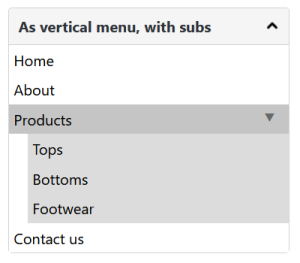 I wanted to find ways to change that behavior and put the arrow where I thought it belonged. That breaks my own guidelines, though ... an HTML tag should do what it was originally designed to do. I was amazed at the transformation. Plus it started to look like a dropdown navigation button. A bit more css, and that's what I had. A fully functional drop down navigation menu. A bit more css, and I was able to include a hover action and display/hide a submenu along with a drop down arrow indicator.
Attractive, functional and without any scripting language. The first trigger to get the initial drop down to display the menu is a click action that is automatic with the <details></details> and <summary></summary> tags. The second trigger is a :hover action (shown on the "Products" menu item). The entire navigation menu diplays by transitions so the action is incredibly smooth.
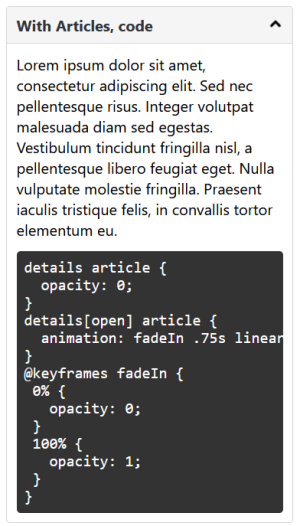 I added a few more lines of CSS so that I could use this new element (somewhat) as it was originally intended, but with more presentation styles.
At the left is the result of that. There is normal paragraph text at the top. Below the paragraph text is a <pre><code> ... </code></pre> block with some code in it. I've styled that too with a near black background, white text, rounded corders, and monospace font. And, it works as a code snippet too ... you can drag your mouse over it, and copy/paste.
Speaking of code snippets, I have been looking for a simple HTML code snippet display tool. I had been using an "open source" vanilla javascript library but it had no line numbers. The way this library worked, it was impossible to just make a modification and include line numbers (uh, I was able to do that, but not able to format or separate the line numbers for a simple copy/paste operation). I ended up rolling my own. Unlike the open source library, there is no syntax highlighting ... but that wasn't a need for me. I'll publish the code soon.
Yup, I think this new "details" element will be part of my CSS Framework.
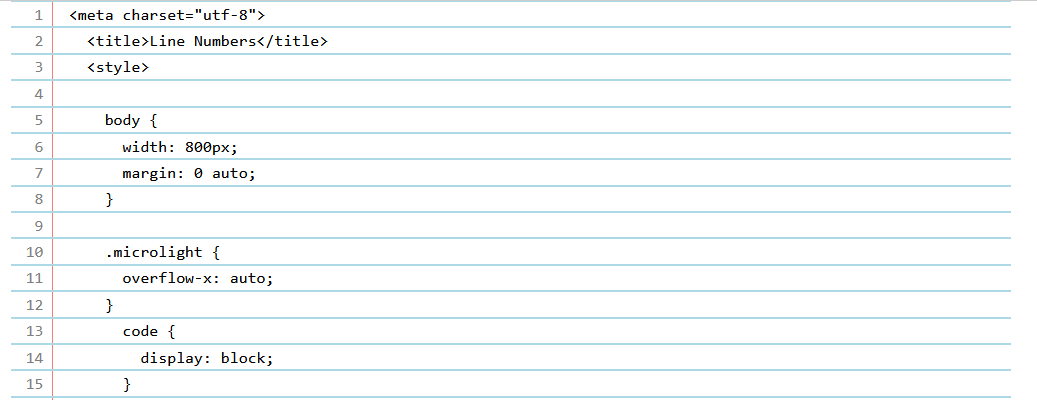 PS. Thought I would "show off" the results of my code snippet Javascript tool. Total of 21 lines of code to do this. The screen shot is just partial ... click on it to see a larger view. The code works on the innerHTML of a container, converts that to html entities (so that it does not execute or process). It preserves spacing. The most difficult part was dealing with single and double quotes.
The code I used as part of the testing was a full HTML page. That showed a flaw in my Javascript code ... it will not display certain HTML tags (most of the semantic HTML tags). Oh well, that's not what I designed it for. It's just for displaying small HTML and CSS code snippets.