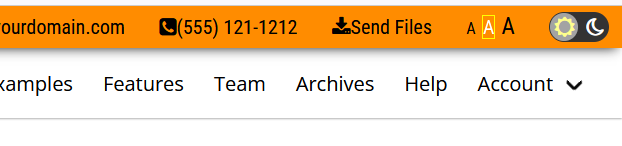
 And, as a sweetener, I have a new feature added too. To help with accessibility, I've added a font-size switcher. You can see it in real size at the right (portion of a screen shot).
I do know that the user always has the ability to press CTRL + or to use the mouse and do a CTRL scroll up or down to change the overall size of the page ... my switcher, though, only affects font-size leaving graphics the same size. Another bonus for my switcher: it's state-ful, meaning the user doesn't have to press the CTRL + (or CTRL scroll) with every visit to the site.
In the image at the top right, the two last components are a Dark/Light mode switcher. And to the left of that, the three A's are the font-size switcher. The font sizes are set to 12px, 16px and 18px. The size of the capitalized As is proportionate. The A with the White outline is the currently selected size (clicking on that won't do anything). Click on either of the As with no outline and it will automatically switch all of the fonts on the page proportionately to that size. The smaller one will reduce the font-sizes on the page by approximately 1.5X. The larger one will increase the font-sizes on the page by approximately 1.2X. The middle one will restore the page to its original appearance.
Best of all, it's state-ful. That means if you shut down the browser and return to that website, it will "remember" the font-size you had previously selected and set it up to that display.
The Dark/Light mode switch works similarly. Click on the moon shape and you get Dark mode. It's instantaneous. Click on the sun shape and you get Light mode, also instantaneous. If in Dark mode, the selector button will cover the moon shape and only expose the sun shape (for Light mode) to be clicked. Similarly if in Light mode, the selector button will cover the sun shape and only expose themoon shape (for Dark mode) to be clicked. The Dark/Light mode feature is also state-ful ... if you are in Dark mode and shut down the browser, upon your relaunch of the browser and return to that page, it will launch in the correct mode from when you closed down the browser previously.
Along the way, I also added more css code to my "fixes". That is for the Navbar with a dropdown sub-menu. In Bulma, the background and foreground are hard coded. Regardless of your settings for Navbar, the dropdowns will always appear the same. Not good under normal circumstances, definitely not good for switching dark and light modes. If you changed the color of your navbar, you would have run into the same issue.
The sizes of my fixes and these new features is pretty much the same as before. To accommodate new CSS for themes, I ended up removing all hard coded background and foreground colors ... those are now all variables in themes. There are two theme CSS files ...
What are themes, by my definition?
Good question. The Dark/Light mode feature I added helped with decisions on how to go about building themes for my custom version of Bulma (based on v0.9.4). So here's how I implemented Dark and Light modes.
Light mode is not a separate theme. It's the default. When I create the page, whatever the design is becomes the Light mode. The Dark mode is based on one of two options: "prefers-color-scheme" or a setting in the HTML code at the top of the page, as in '<html lang="en" data-theme="dark">'. Javascript code evaluates the two situations. If "prefers-color-scheme" is set in the user's environment, that mode is automatically displayed. If the designer has set the "data-theme" and there is no "prefers-color-scheme" ... then the "data-theme" mode is displayed. Actually, there is an over-ride ... if the user had previously selected either Dark or Light theme by pressing the toggle switch, that will override both of the other possibilities. The choice is stored in "localstorage" accessible by Javascript (actually, by my implementation of JQuery Slim). It works pretty much the same way for font-size switcher.
The screen shot above, by the way, is a portion of a new fixed InfoBar. I place it above the navbar. The left area has social media buttons and links, the right area has email address and contact phone number, both with icons. That's followed to the right by a file upload option, then the font-size switcher and the Dark/Light mode toggle switch.
Of course, all of these can be within the navbar or the footer ... it doesn't have to be implemented in an infobar. That's just a design component I built.